🏗️ Fund Setup
Configure your fund's details, fees, wallets, and settings step by step.
Setting up your on-chain fund in the Tokenization Engine is straightforward. Follow the steps below to configure your fund's essential details, fees, wallets, and settings.
General Information
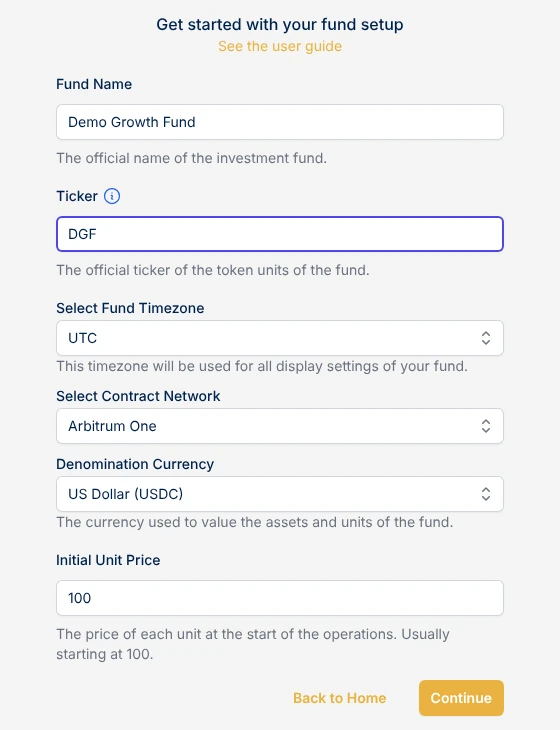
The first step is to define the core details of your fund:
- Fund Name: This is the name of your fund.
- Ticker: The symbol of your fund's first share class token. Hover over the info icon next to this field for guidance on choosing a ticker.
- Fund Timezone: The timezone used for every date shown for your fund.
- Denomination Currency: The stablecoin used for accounting and subscriptions: USDC or USDT.
- Blockchain Network: The network on which your fund's smart contract will be deployed. The Tokenization Engine supports Ethereum, Arbitrum One, Base, and BNB Smart Chain (BSC). We recommend Arbitrum One for its lower costs and faster transactions.
- Initial NAV: The starting Net Asset Value per unit. This is the price at which the first units are issued to your early investors. It is commonly set to 100.00.
Fees
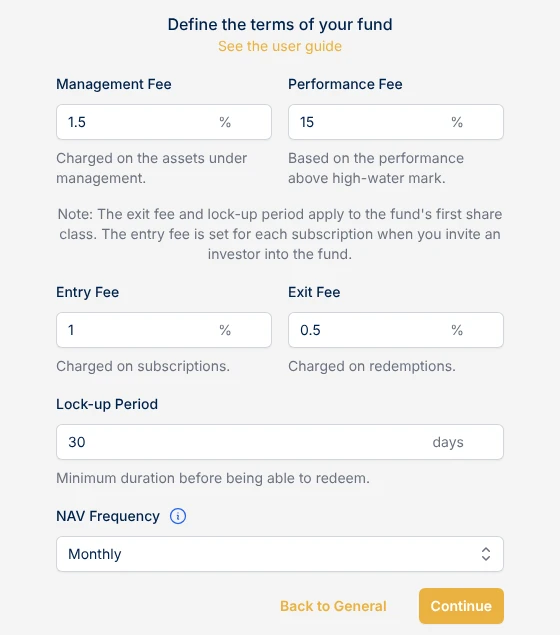
Now, define the terms of the fund. They become the terms of your fund's first share class:
- Management Fee: A yearly percentage of the class's value, charged per month.
- Performance Fee: A percentage of gains above the class's high-water mark. It crystallizes monthly by default.
- Entry Fee: The default fee on new subscriptions. You set the entry fee of each subscription when you add it, starting from this value.
- Exit Fee: The fee applied when investors redeem their units.
- Lockup Period: How many days new units stay locked before they can be redeemed or transferred.
- NAV Frequency: How often you plan to calculate the NAV. It is shown to investors as a guideline and does not enforce a schedule.
Note: You can add more share classes with different terms later from Settings. On an existing class, the exit fee can only be lowered, and a new lock-up applies to new subscriptions only.
Wallets
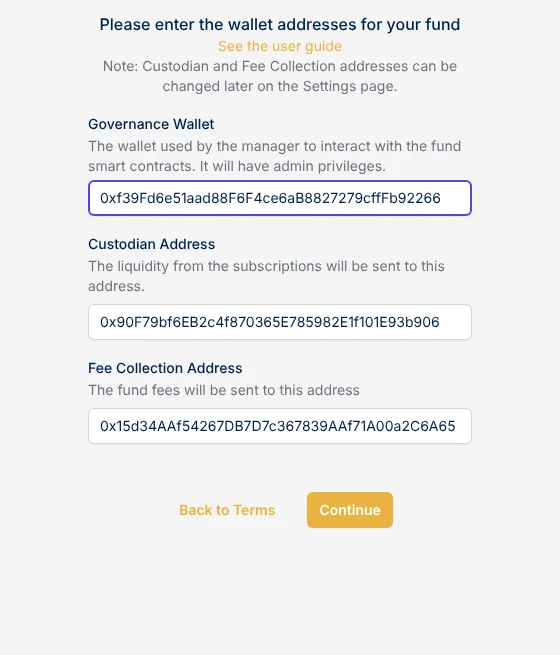
Next, you need to configure three wallets for your fund:
- Governance Wallet: This is the wallet that the fund manager uses to control the on-chain fund. The manager can whitelist investors, run NAV calculations, move liquidity, and settle fees and redemptions. For example, you can use a MetaMask wallet or a more secure solution such as a multisig like SAFE or Fireblocks.
- Custodian Address: This is the wallet where the liquidity for the fund is stored. The fund manager can connect any custody solution here, such as a multisig, MPC, or even a centralized exchange. This wallet holds the underlying assets of the fund.
- Fee Collection Address: This is where the management, performance, entry, and exit fees are collected. In some cases, the fund manager might use the same address for both the governance wallet and fee collection.
Note: The custodian and fee collection addresses can be changed later from Settings.
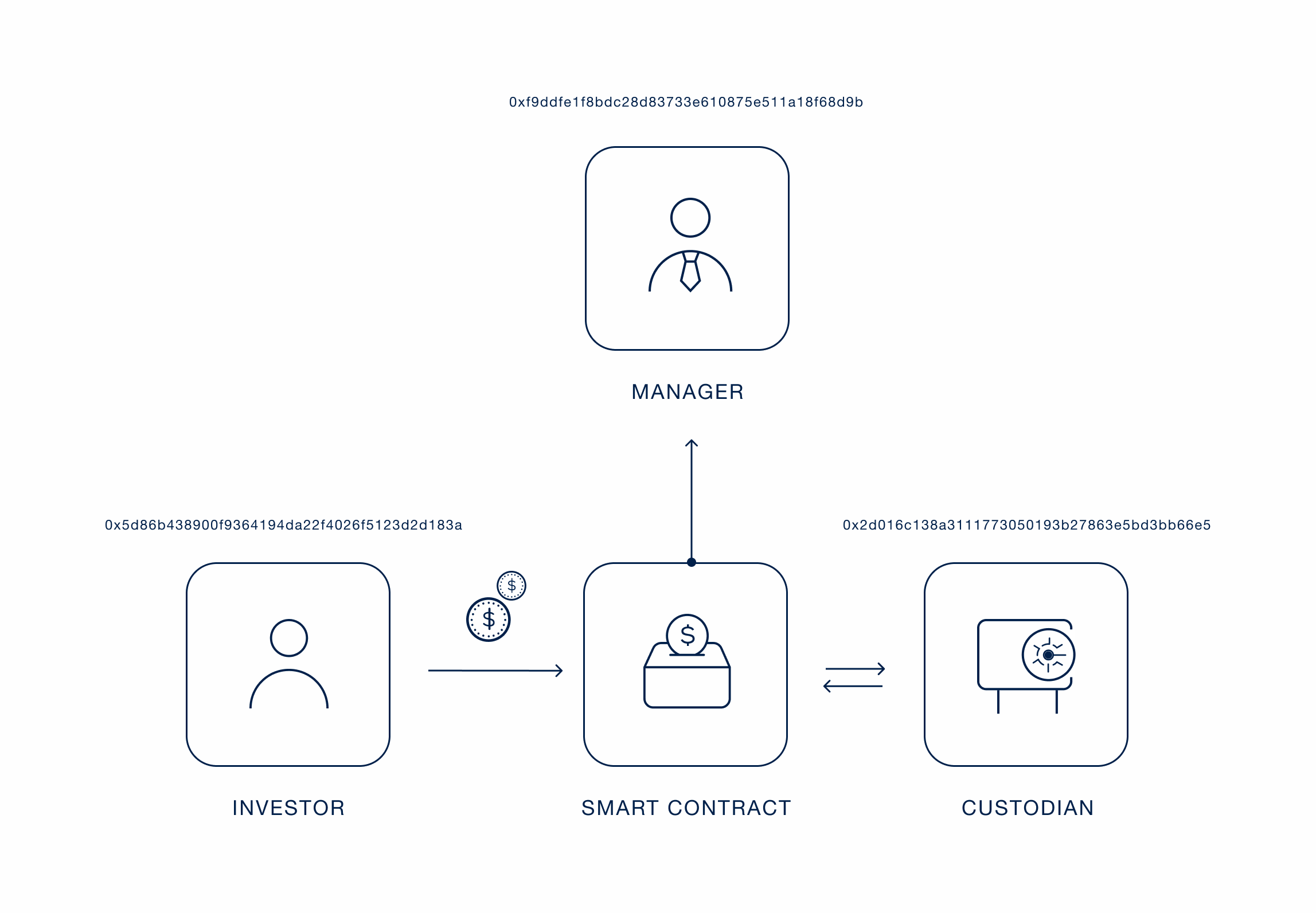
Example of wallets for an On-chain Fund
Transparency
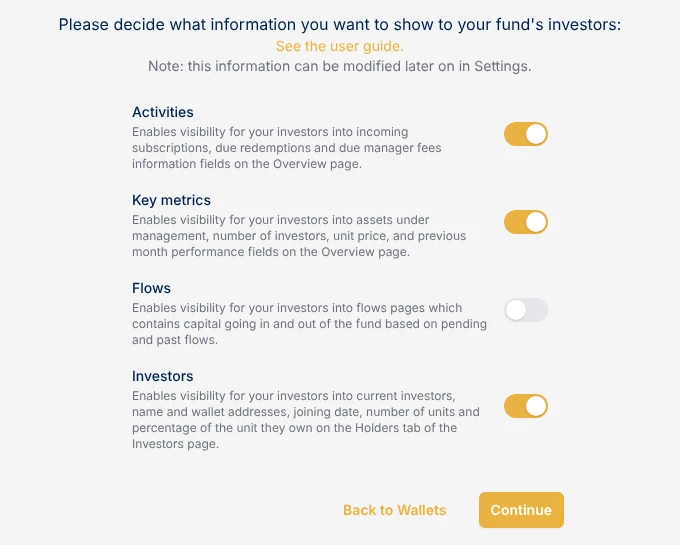
Finally, you can configure the transparency settings for your fund. Decide how much information you want to make visible to investors:
- Activities: Incoming subscriptions, due redemptions and due manager fees on the Overview page.
- Key Metrics: Assets under management, number of investors, unit price and last month's performance on the Overview page.
- Flows: The Inflows and Outflows pages, with pending and past capital movements.
- Investors: The units register, with the other investors' names, wallets, joining dates and units.
Each of these can be switched on or off, now or later from Settings.
Share classes
If you need to offer different terms to different groups of investors (for example, a lower management fee for early backers or a different lockup period for institutional investors), add more share classes from Settings > Share Classes after setup. Each class has its own token, price, high-water mark, fees and lock-up, while all classes share the same portfolio and are priced in the same NAV calculation. See Tokenized Units.
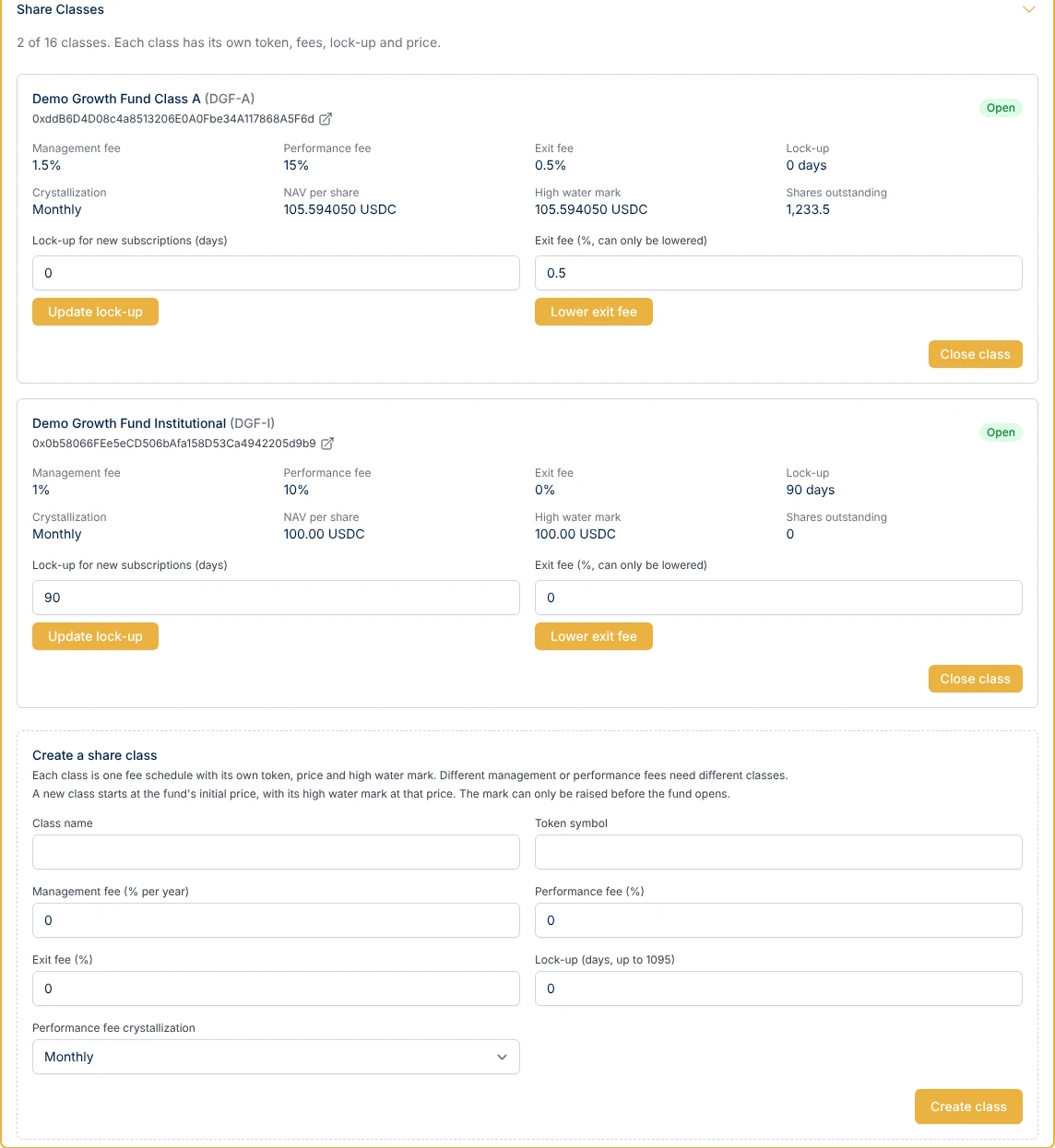
Settings > Share Classes: each class with its terms and price, and the form to create another.
When you invite an investor, you can pick the class they usually subscribe to; it is preselected when you add their subscriptions.
Customization
After setup, upload your fund's logo from Settings. It appears across the platform wherever your investors interact with the fund.